
The Scope
Introducing the "Report Suspicious" Button
By Mica McGuire | July 02, 2019

The PhishAlarm Has a New Look
If you’ve been looking for the Phish Alert Button in Outlook to report a sketchy message,
you might notice things look a little different.
What’s Changing?
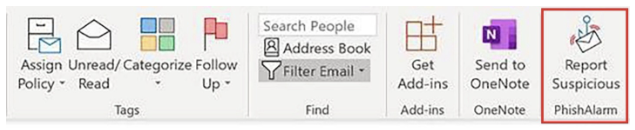
The Phish Alert Button has been replaced with the Proofpoint Report Suspicious button.
This email reporting tool is available for TTUHSC email in the Outlook desktop app,
the Outlook mobile apps, and on Outlook.com.
On Desktop (Outlook / Webmail)
Look for the "Report Suspicious" text label in your top toolbar or ribbon menu.
Depending on your window size, it may hide under the three dots (...) menu on the
far right of an open email.
On Mobile (Outlook App)
- Open the suspicious email.
- Tap the three dots (...) in the upper right corner of the message (not the app header).
- Select Report Suspicious from the menu.
How It Works:
Reporting a threat hasn't changed. When you encounter an email that feels off - whether
it's an unexpected attachment, an urgent request for your password, or a strange link:
- Step 1: Select the email and click the Report Suspicious button.
- Step 2: The email will automatically disappear from your inbox and go straight to our security team for automated analysis.
- If the email turns out to be safe, it will be returned to your inbox.
- If it's malicious, the IT Security team will use the information gathered from the email and use it to prevent these types of emails getting through to TTUHSC inboxes.
Find additional information about the Report Suspicious Button here. Thank you for continuing to keep our network secure!
----------
Have more IT questions? Head over to our Knowledge Base for quick solutions and guides on a variety of tech topics. You can also check out the ITSC's hours and location TTUHSC Knowledge Base - IT Solution Center Contact Information and Hours.
Tags: Information technology
Recent Articles